How to Use
A box holds a password or PIN. You choose the time and the kind of session needed to see it again.
Create a box
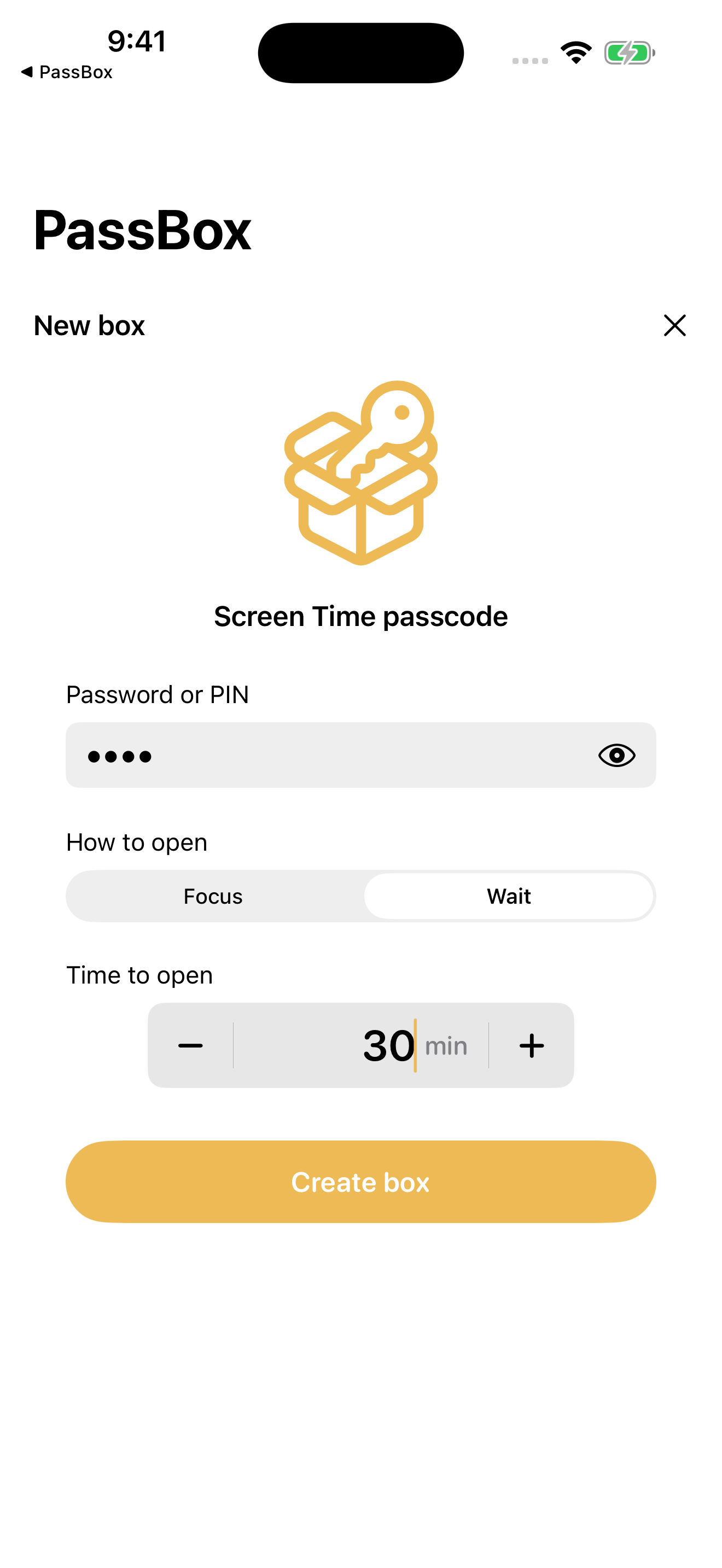
- Choose + and give the box a name.
- Choose Password, 4-digit PIN, or 6-digit PIN. Enter a password twice, or choose Set PIN and enter it twice on the keypad. A confirmed PIN appears as PIN set; choose Change to replace it before saving.
- Choose Wait or Focus, set the duration, then choose Create box.
Saving a password here does not change it in another app or service. The password and opening rule cannot be edited after the box is created.
Open a box
- Select the box and choose Start waiting or Start focus.
- Complete the session.
- Choose Open box to view or copy the password.
The timer starts when you start the session. A revealed password hides after 60 seconds or when you leave the app. Opening it again requires another session.
Wait or Focus?
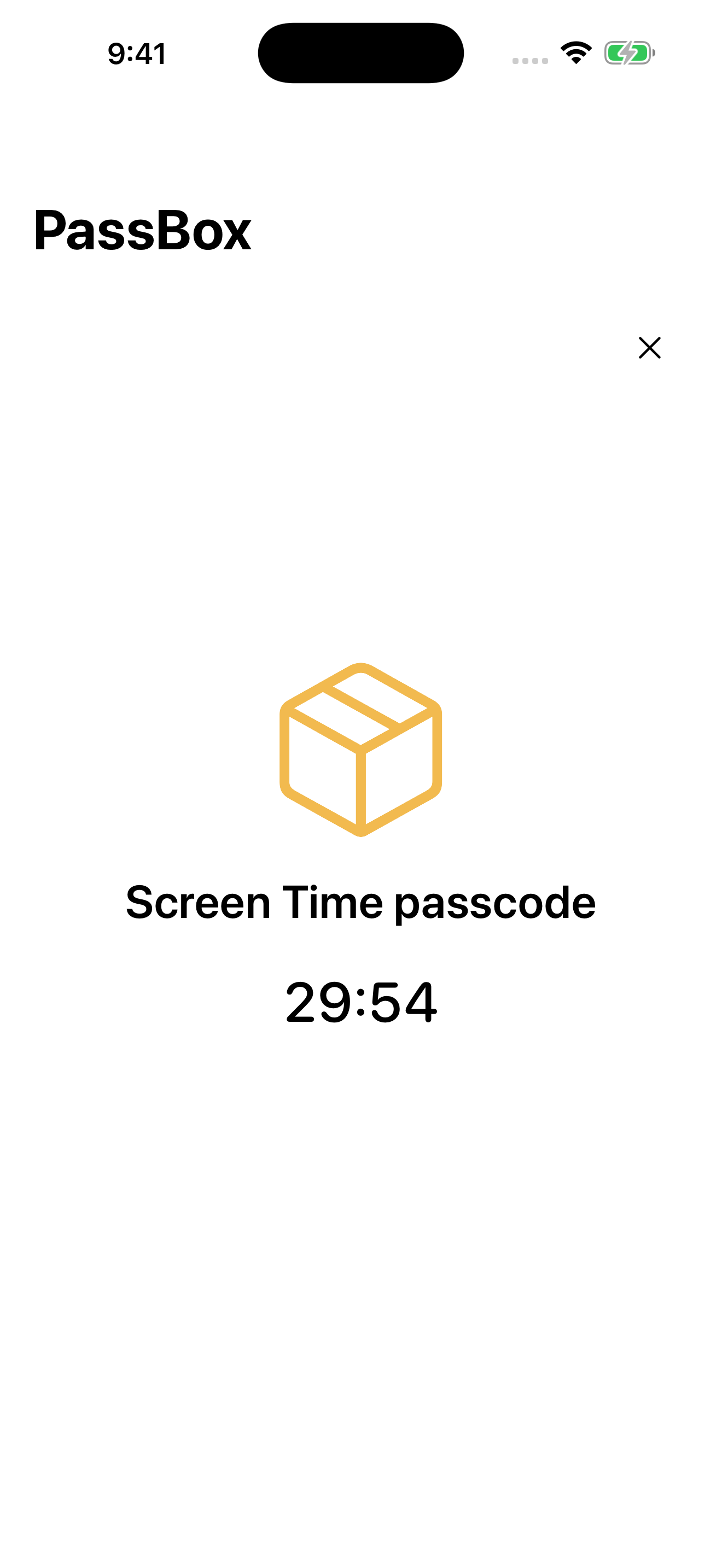
Wait: you can use other apps while the countdown runs. Quitting or restarting PassBox starts the full wait over.
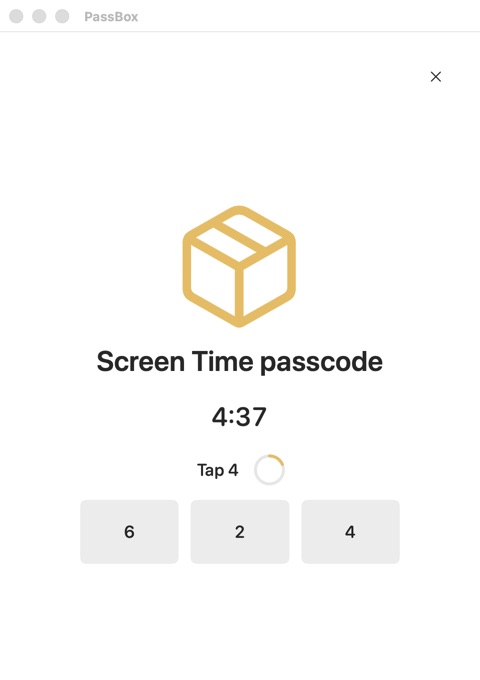
Focus: stay on the box screen and tap each requested number within five seconds. Leaving the session or missing a prompt starts the full time over.
Wait
Focus
Suggested setup for Screen Time
PassBox can work alongside your preferred Screen Time setup. This example stores both the Screen Time passcode and the password for the Apple Account used for passcode recovery.
- Configure your limits in Screen Time or your preferred blocking tool.
- Set a Screen Time passcode and use a separate Apple Account specifically for Screen Time Passcode Recovery.
- Save the Screen Time passcode in one PassBox and that Apple Account’s password in another.
- Choose an opening time for each box.
A credential you remember or keep elsewhere remains usable without opening PassBox. Apple Account recovery may also provide another route. Keep a recovery plan for important accounts.
Password generator
Open Tools → Password generator. Choose a 4-digit PIN, 6-digit PIN, or 24-character password, then choose Generate. Use Create box to carry the result into a new box. No confirmation entry is needed unless you edit it. Copy the generated value when you need to set it in another app or service.
Forget your PIN
After storing your PIN, learn and enter ten different PINs to make the stored one harder to recall. Open Tools → Forget PIN, then choose four or six digits. Choose Go again after finishing to start another ten rounds. The exercise does not use your stored PIN and cannot guarantee that you will forget it.
iCloud and recovery
Boxes work offline and sync through iCloud on devices using the same Apple Account. Each device runs its own timer. Check Tools → iCloud & recovery for sync status.
For reinstalling, deleted boxes, or troubleshooting, visit Support.